How to configure Workday change job templates before the 2026R2 deadline.

Most Workday tenants run the same Change Job process for every type of job move. Whatever the reason, a new location, a promotion, or a shift in reporting line, the process displays every field, whether it is relevant or not. A manager approving a location move ends up reviewing compensation, organisational assignments, and contract details that are not relevant.  

Change Job Templates let you tailor the process to the reason. From 2026R2, they are mandatory. This guide covers how to set them up.

What change templates do

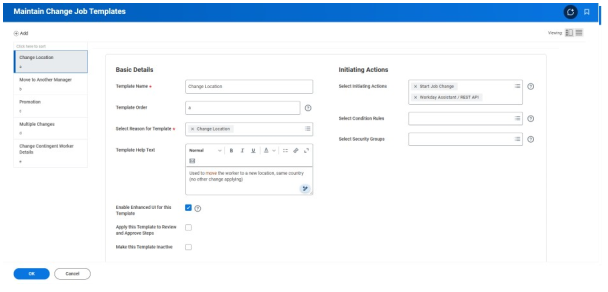
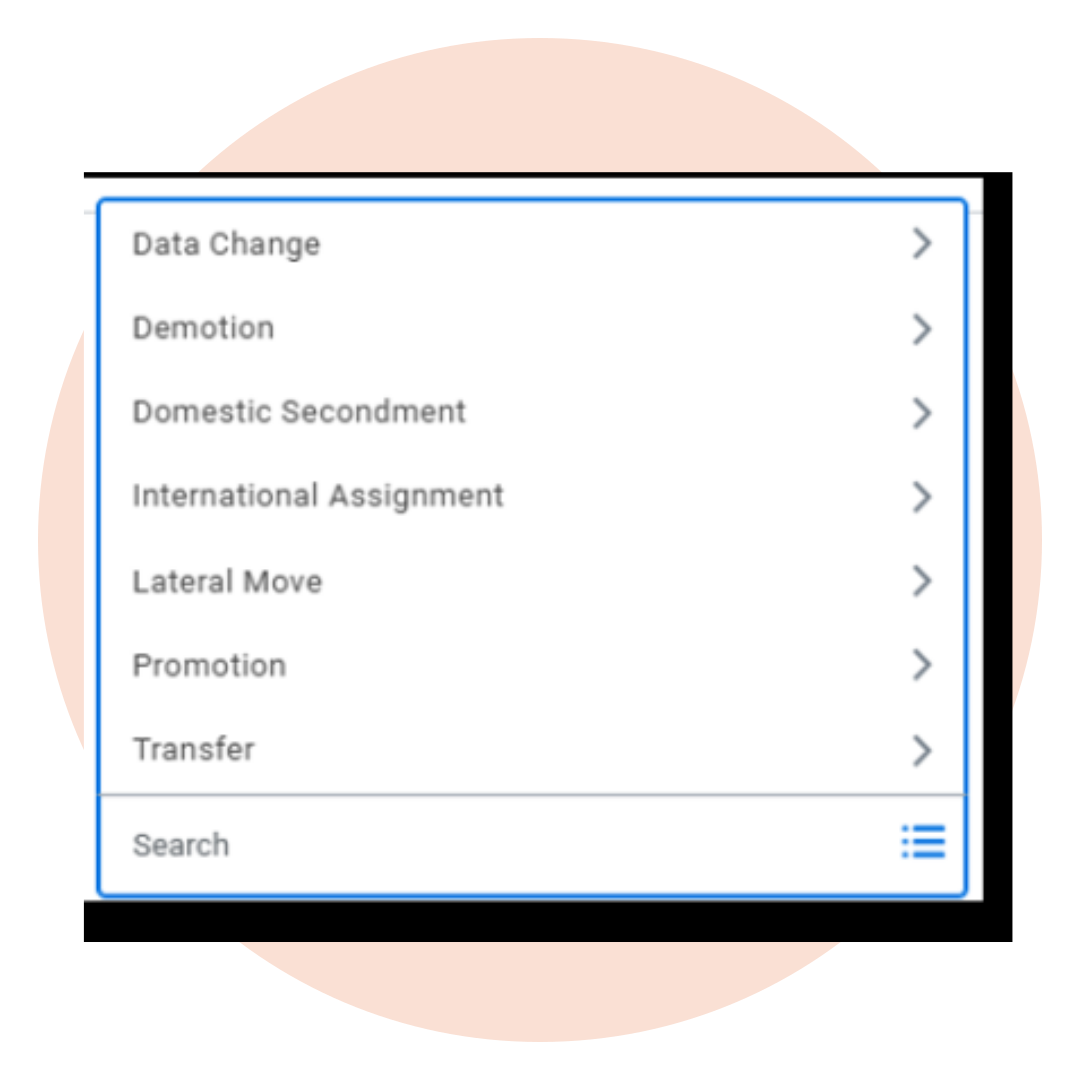
Each template is tied to a change job reason, such as location change, promotion, line manager change, or role change. The template defines which fields and steps are relevant for that reason, and nothing else appears.
 
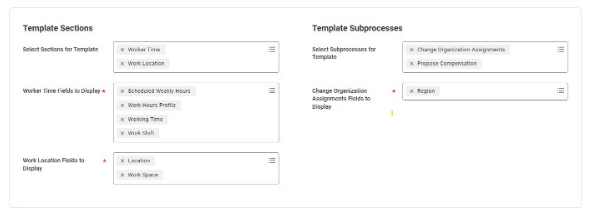
A location change might only need the location field and the new manager. A promotion would include position, manager, and compensation. The person initiating the change only sees what is relevant. More usefully, the approving manager only sees what changed, not a full review screen of fields that stayed the same.
 
That last point is where a lot of the time-saving comes from. Before templates, approving a simple location move meant reviewing a screen full of irrelevant information. Templates fix that.
About Preos

At Preos, we help our clients get the most out of Workday. We ensure your organisation is using the platform to its full potential and getting the best possible return on your investment.

Learn More
Change Job Templates

How many templates do you need?

It depends on how many change job reasons your organisation has, and how different the processes are between them. One template can cover multiple reasons if the steps are essentially the same.
 
A good starting point is to pull up your full list of change job reasons and group them by process similarity. Some organisations may only need a couple of templates. Others may need many more. There is no universal right number. 

Steps to set up change job templates

Templates are managed through the Maintain Change Job Templates task. Search for it in Workday, and you will find your existing templates listed there, if any have been configured already.

To create a new template, you will name it, select the change job reason or reasons it covers, and choose which sub-processes to include. Sub-processes are the building blocks of the change job — compensation, organisational assignments, position details, manager, and so on. You include what is relevant and leave out the rest.
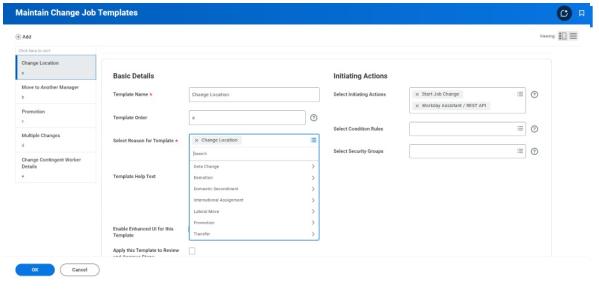
Once saved, test it. Initiate a change job using that reason and check that the screen shows only what you intended. The approver review screen should look equally clean. If an element is missing or shouldn’t be there, you can update the template. You do not need to rebuild from scratch. 

Areas to consider

Security: Decide who can create and edit templates before you go live. If it is open to everyone, you will quickly have duplicates and inconsistencies. Restricting access to whoever owns your Workday configuration keeps things manageable.
 
Change management: When templates go live, the change job screen will look different to anyone who uses it. That might be HR, line managers, or both. Think about who needs to know about the change, what they need to understand, and how you communicate it before go-live.
 
Custom fields and terminology: If your organisation uses custom change job reasons or bespoke fields, check that these are accounted for in the relevant templates. They can be included; you just need to add them when building.

Before the deadline arrives

If your organisation already has templates configured, the 2026R2 release will not change anything for you. It is still worth a review to make sure everything is accurate and up to date.
 
If you have not configured templates yet, Workday will apply a generic default. That default covers every sub-process for every change job reason, which puts you back to the same long process you had before, except now it is mandatory rather than just the standard.
 
Mapping your change job reasons and thinking through which sub-processes belong in each template is where most effort is required. Getting started now means you can test and refine before the release lands.
 
If you would like support with configuring your Workday Change Job Templates, get in touch with our team.
Contact Preos

Further reading

GLOSSARY

The Workday AI glossary: what the terms you hear mean

Sana, Flex Credits, service agents, uMSA and more: what each term means and why it matters for your organisation.

8 min read     Read resource 

ARTICLE

What is Workday AI?

Workday has used ML for years. The latest capability is a meaningful shift. A plain explanation of Workday AI, how agents work, and what is available right now.

4 min read     Read resource 

ARTICLE

What is Sana, and what does it mean for Workday customers?

What Workday’s acquisition of Sana means in practice: what changed, how the three tiers work, and what to do before your next renewal.

5 min read     Read resource